Attachment Templates
The attachment loader template also supports uploading the attachments.
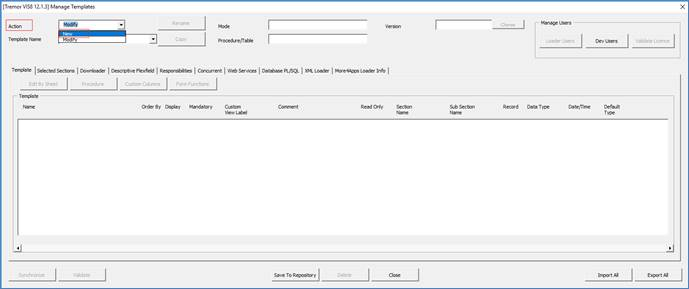
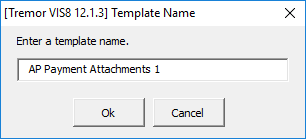
In the Main ribbon select the Attachments Template and create a new worksheet.
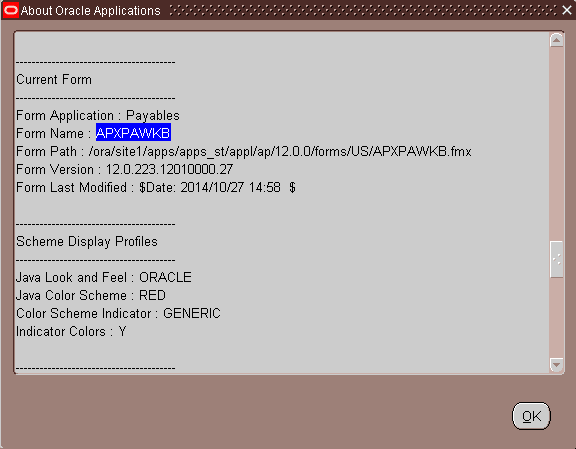
Note - The two sections where the source document exists separately to the 'Attachments' section. Both sections have data entry forms, accessed by double-clicking on any cell below row 10.
In the below example the CHECK_ID value has been entered fron the Oracle AP Payments and Attachments uploaded against these using the 'Upload' buttons.
Select the rows for upload and click on the appropriate ‘Upload’ button on the ribbon. The Wizard then processes the rows and displays the results back to the sheet in the 'Attachment Status' and 'Attachment Messages' columns.
Double-click on the Attachment row to open the form and make changes to the individual records. Supported documents like webpage and file provided in the ‘Content’ box can be viewed by clicking the ‘View Document’ button. After changes have been completed the user can upload using the ‘Upload Now’ button on the form.
Example of successful Attachment uploads:
The resulting Attachment now exists against the AP Payment record.
Note - Attachments can also be uploaded directly clicking the 'Upload Now' button on the ‘Attachments’ data entry form:
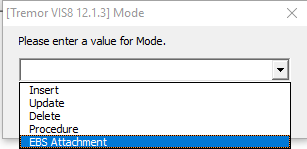
Refer to section: